A construction punch list template is a table you fill in on the final walk, with one row for every item that still needs work. It needs these columns: item number, location or room, description, trade, assigned to, priority, due date, status, photo reference and date closed. Put the project, the walk date and the drawing revision at the top, and a sign off at the end.
Use this construction project punch list template as an Excel workbook, a printable PDF or a CSV file. Below, each column has a site example, and a filled list shows how it looks. Use the Excel file if you type the list or share it with the trades. Use the PDF if you walk with a clipboard or a tablet.
Download the template
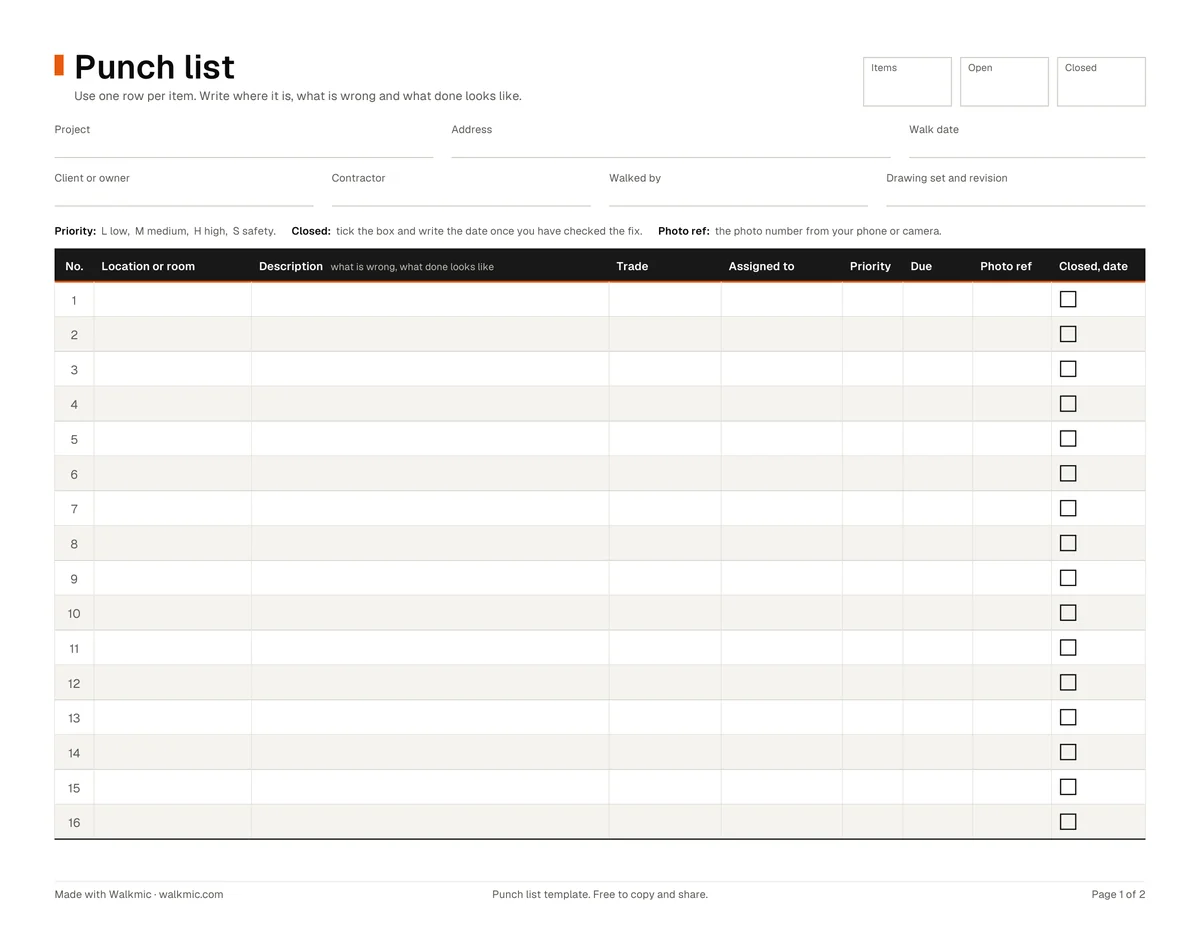
| File | Best for | What you get |
|---|---|---|
| Excel workbook (.xlsx, 23 KB) | Typing the list, sorting by trade, tracking it to closeout | A filterable table with 100 numbered rows, dropdowns, color rules, a Summary sheet, a filled example and print setup |
| Google Sheets | One shared list the whole team can edit | Use the Excel workbook. Upload it to Google Drive and open it with Google Sheets, or choose File, then Import. |
| Printable PDF (255 KB) | Walking with a clipboard, or filling in on a tablet | US Letter, landscape. 33 numbered rows over 2 pages, a box to tick when an item closes, and a sign off block. |
| CSV (under 2 KB) | Importing into another app | The same 11 columns and 100 numbered rows as plain text. No formatting. |
What the Excel workbook does for you:
- Dropdowns. Pick Trade, Priority and Status from a list in each cell. Edit the trades on the Trades sheet, and the dropdown follows.
- Color rules. Closed items turn gray. Safety items turn orange. A due date that has passed turns red until the item closes.
- Live counts. The top of the list shows items, open, closed and percent closed. The Summary sheet counts items by status, priority and trade as you type.
- Ready to print and filter. The column headings stay in view as you scroll and print on every page, on US Letter, one page wide. Use the filter buttons to show one trade's items before you print or send them.
- A filled example on its own sheet, and a short How to use sheet.
What goes in each column
Write each item so that a trade who was not on the walk can find it, fix it and prove it is fixed.
| Column | What to write | Example |
|---|---|---|
| No. | A number that never changes, even after the item closes | 14 |
| Location or room | Floor, room number and wall or fixture | Room 204, north wall, next to the vanity |
| Description | What is wrong and what done looks like | Outlet cover missing. Install a white cover plate to match. |
| Trade | The trade that fixes it | Electrical |
| Assigned to | The company or person responsible | The electrical sub |
| Priority | Low, Medium, High or Safety | Medium |
| Due date | The date you agreed on site | Nov 14 |
| Status | Open, In progress, Ready for review or Closed | Open |
| Photo ref | The photo number from your phone or camera | IMG 2246 |
| Date closed | The day you checked the fix and closed the item | Nov 18 |
| Notes | Anything else the trade needs to know | Match the finish in Room 203. |
Two habits make the list work. Use the room numbers from the drawings, not "the back bedroom". And write what done looks like, so nobody argues about whether the item is closed.
A filled example (sample punch list)
Here is what a short list looks like after a walk of a second floor office build out. The Excel file has the same list on its Example sheet.
| No. | Location or room | Description | Trade | Priority | Status | Photo ref |
|---|---|---|---|---|---|---|
| 1 | Room 201, east wall | Paint touch up around the light switch. Match the wall color. | Paint | Low | Open | IMG 2210 |
| 2 | Room 202, door | Door rubs the frame at the top corner. Adjust so it closes without force. | Doors and hardware | Medium | Open | IMG 2213 |
| 3 | Room 203, ceiling | Two ceiling tiles stained near the diffuser. Find the source, then replace both tiles. | HVAC | High | In progress | IMG 2216 |
| 4 | Corridor, outside 204 | Drywall dent at cart height. Patch, sand and paint. | Drywall | Low | Open | IMG 2219 |
| 5 | Room 204, bath | Outlet cover missing next to the vanity. Install a white cover plate to match. | Electrical | Medium | Ready for review | IMG 2231 |
| 6 | Room 204, bath | Caulk gap where the vanity top meets the wall. Recaulk in white. | Plumbing | Low | Open | IMG 2233 |
| 7 | Room 205, storage | Shelf bracket loose. Fix to the stud. | Millwork | Low | Closed | IMG 2236 |
| 8 | Room 206, kitchen | Cabinet door out of line with its neighbor. Adjust the hinges. | Millwork | Low | Open | IMG 2240 |
| 9 | Room 206, kitchen | Sink faucet drips. Replace the cartridge and test. | Plumbing | Medium | Open | IMG 2242 |
| 10 | Stair 2, landing | Handrail bracket loose. Tighten before the stair opens to the client. | General | Safety | Open | IMG 2245 |
Notice the pattern: room first, then the defect, then the fix. Each row points to one photo. Assigned to, Due date, Date closed and Notes are left out here to fit the screen; the Excel example has all 11 columns.
Construction and residential versions
Construction (commercial and multifamily). The list is usually long and split by trade. Before the formal walk, the general contractor often runs its own walk and fixes what it finds. Then the architect or owner's rep walks and writes the list the contractor must close. In the Excel file, filter the Trade column and send each trade only its rows. Mark anything that puts people at risk as Safety; those rows stay orange until they close.
Residential (remodels and new homes). The list is shorter and the homeowner walks with you on the final walkthrough. A residential punch list template needs plain words the owner understands, such as "paint touch up above the tub" instead of a code from the drawings. Use the Notes column for your own notes, and print the PDF if the homeowner wants to sign the list at the end of the walk.
In Canada: deficiency list
In Canada, many architects and builders call the punch list a deficiency list, and the walk a deficiency walkthrough. This deficiency list template has the same job and the same columns. If your client expects that word, download the version titled "Deficiency list" as an Excel workbook or a PDF, or the CSV with the same columns.
How to use it on the walk
- Fill in the top before you go. Project, address, client, contractor, walk date, who walks and the drawing revision you are checking against.
- Walk in a fixed order. Floor by floor, room by room, and clockwise around each room, so you do not miss a wall.
- Write one item per row. Location, what is wrong, what done looks like. Take a photo and write its number in Photo ref.
- Agree on owners and dates on site. Fill in Assigned to and Due date while the contractor is standing next to you.
- Send it the same day. If you walked with paper, type the list into the Excel file and filter it by trade to send each trade its rows. Then walk again to back check, and close each item you have checked.
For the whole walk, step by step, see how to run a punch walk.
When a paper list stops working
A paper list works on a short walk. On a long one, the write up takes longer than the walk. You end up at the desk at night matching clipboard notes to photos in the camera roll and pins on a marked up PDF. Then each trade gets a printout or an email attachment, with no easy way to reply or close its items.
That is the problem we are building Walkmic for. Walkmic is a field report app in development for iPad, iPhone and Android, made for architects who run site visits and punch walks. The punch list is one part of the field report. The plan: you walk the site and talk, tap the drawing where you see an item and take a photo. AI will draft each item with the room and the trade for you to confirm. It will also draft the rest of the report: the people on site, the progress and your observations. You will review every line and sign it. The report is meant to be ready before you leave the site, with a link that clients and subs open with no account. The beta is planned for early 2027.
If you write a report after every site visit, not only at closeout, use the free field report template. It has its own table for the items that need action.
Until the beta opens, use the templates. If you want the beta invite, join the waitlist.