An architect's field report records one site visit: the date, the weather, who was on site, what work is under way, what you observed, and what needs action and by whom, with photos. With Walkmic, the plan is that you walk the site and talk, take photos and tap the drawing for each open item. The AI will draft the report as you go, and you will review every line and sign it before you leave. The owner and the contractor will get a PDF and a free link they open with no account.
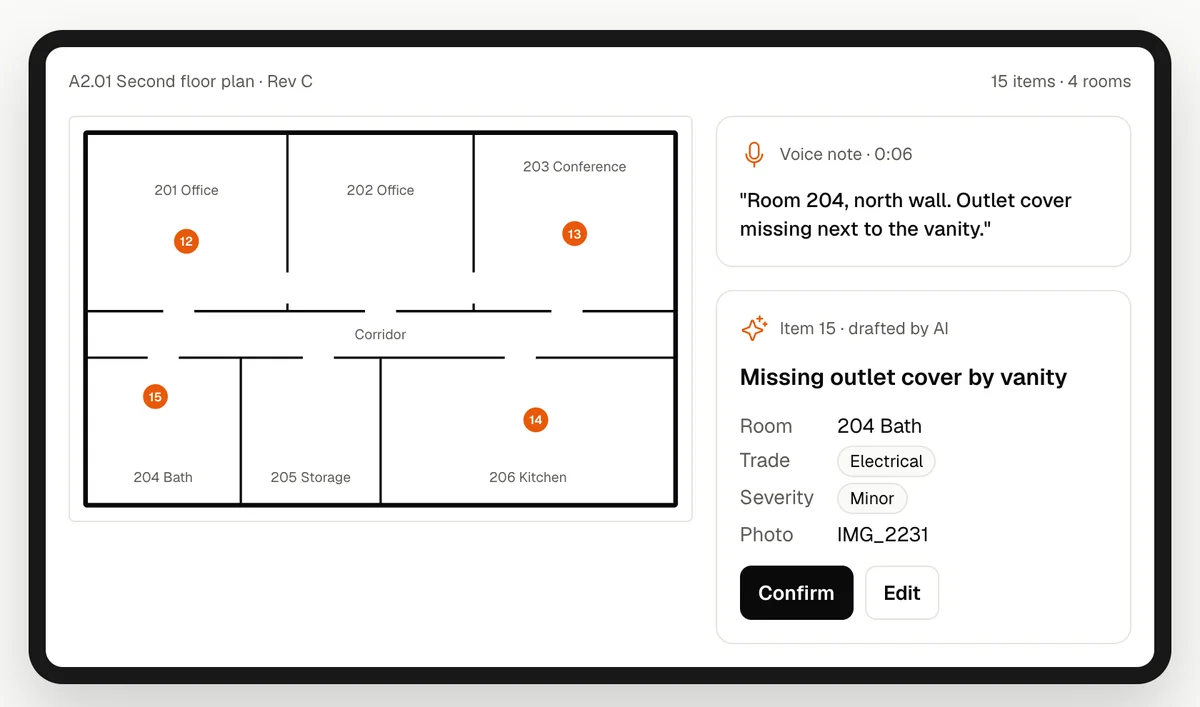
The report after every site visit
During construction you visit the site every week or two. Each visit ends in a field report to the owner and the contractor. Some firms call it a site visit report, a field observation report or a construction observation report. It is the same job: what you saw, what changed since the last visit, and what the contractor needs to fix.
The visit takes an hour. The report often takes the evening:
- Notes on a clipboard or in a notes app.
- Photos in the camera roll, with no link to a room or a sheet.
- Clouds and callouts on a marked up PDF.
- The same headings typed again: date, weather, who was on site, report number.
Then the contractor asks which wall you meant. At substantial completion the punch walk adds dozens of items to the same report, and the back check repeats the work a few weeks later.
What goes in the field report
Walkmic is planned to draft these parts of each report from your voice and photos:
| Part | What it holds |
|---|---|
| Visit details | Project, report number, date and time on site |
| Weather | Sky and temperature on the day of the visit |
| People and trades on site | The superintendent, the crews and how many people |
| Work in progress | For example "level 2 taping under way in the east wing" |
| Observations | What you saw, where you saw it, with a photo |
| Items that need action | Each one pinned on the drawing, with room, trade and photo |
| Photos | Every photo, tied to an observation or an item |
The report follows our own structure, and you can edit every line. You sign it, and it goes out under your name.
What Walkmic is built to do on the visit
Walkmic is in development. The steps below are what we are building for the first release, not things you can use today. You can try the drafting today with the free field report maker, in your browser with no account.
- Open the set you already have. Any PDF from Files, Mail, a cloud drive or the share sheet, with no project to set up first.
- Walk and talk. Say what you see as you go: "Level 2 corridor, fire caulk missing at two pipe penetrations above the ceiling."
- Take photos. Each photo is planned to attach to the observation or the item you are talking about.
- Tap the plan for each item that needs action. The pin sets the room. The AI drafts the item with the trade, and you confirm it.
- Mark up with Apple Pencil on iPad. Clouds, arrows and text on the sheet, with undo and redo one tap away.
- Review, sign and send. You check every line before anything goes out.
Basements and new buildings often have no signal. We are building Walkmic so that voice notes, photos and pins save on the device first. The AI drafts and the uploads will finish when you are back online. That is a design goal until it ships and we test it.
Punch items inside the report
The architect punch list at substantial completion is planned as a part of the same report, not a separate app. Every item will get a pin on the drawing, the room, the trade and a photo: paint touch up, a missing cover plate, a door that will not latch, a gap in the caulk. Each trade will get a link to its own items. On the back check you will walk the same pins and see what the trades marked as fixed.
If you run a punch walk this month, our guide on how to run a punch walk has the steps, and the free punch list template has an Excel and a PDF version.
The report the owner and the contractor get
One tap is planned to make the PDF: your logo on the cover, the visit number, the marked up plan with the pins, and the photos. It goes into the project file as your record of the visit.
The owner, the contractor and each trade will also get a link. They will open it in any browser, with no account and no app. The contractor will be able to reply, add a photo of the fix and close the item. Guests are always free, so you never pay a seat for someone who only needs to read and reply.
If you used Revu for iPad
Revu for iPad left the App Store on 31 December 2025, and Bluebeam no longer supports it (Bluebeam support). If it was your site visit tool, our page on Revu for iPad alternatives compares the options. Walkmic is being built for the same visit, but it will not import Revu tool sets and will not sync with Revu on the desktop.
What Walkmic does not do
Walkmic is for the site visit and the report. It is not built for:
- RFIs, submittals or schedules.
- BIM or model coordination.
- Building code, accessibility or safety checks.
- Measurements taken from photos.
The AI drafts. You review, edit and sign. The report does not replace your professional judgment or your duties under your contract.
Start with the free templates
While we build, use the punch list template and the punch walk guide. When you are ready to leave the site with the report done, join the waitlist. Walkmic is planned to have a free plan and a 14 day free trial of Pro at launch. Tick the box in the form below to hold the early access price, with no payment today (how it works).